
Need to use different credit cards for different sites? Good news: Site Billing makes that possible.
If your account has multiple sites, you can save multiple payment methods and assign a specific credit card to each site. This is especially helpful if your parent or default site is a corporate office and each site represents a separate location with its own billing setup.
What Site Billing Does
The Site Billing feature allows you to:
Save multiple credit cards to your account
Assign a different card to each site
View billing statements at the site level
Keep charges organized by location
Where to Find Site Billing Options
To access Site Billing:
Go to Main Menu
Select Account > Account Details
Under the Account Plan & Billing section, click on Billing Information
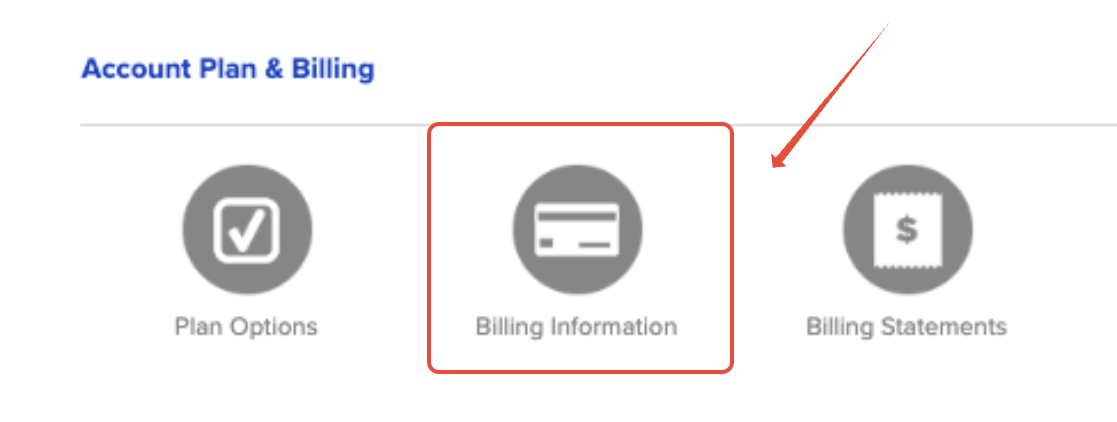
To view billing statements for a specific site:
Go to Main Menu
Select Account Details
Under the Account Plan & Billing section, click on Billing Statements
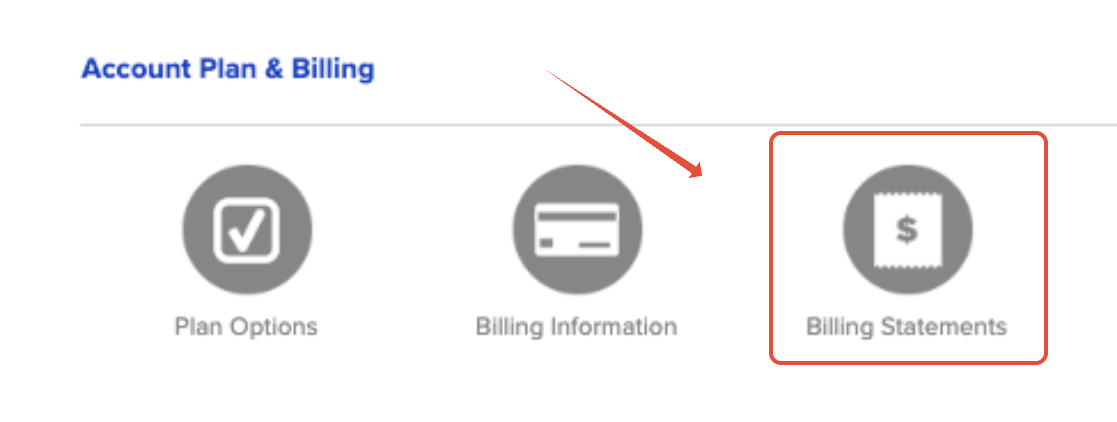
Add a New Credit Card
Once you are on the Billing Information page:
Users with Admin-level access or higher can add and view saved credit cards
Click Add a Card
Enter the card details in the pop-up window
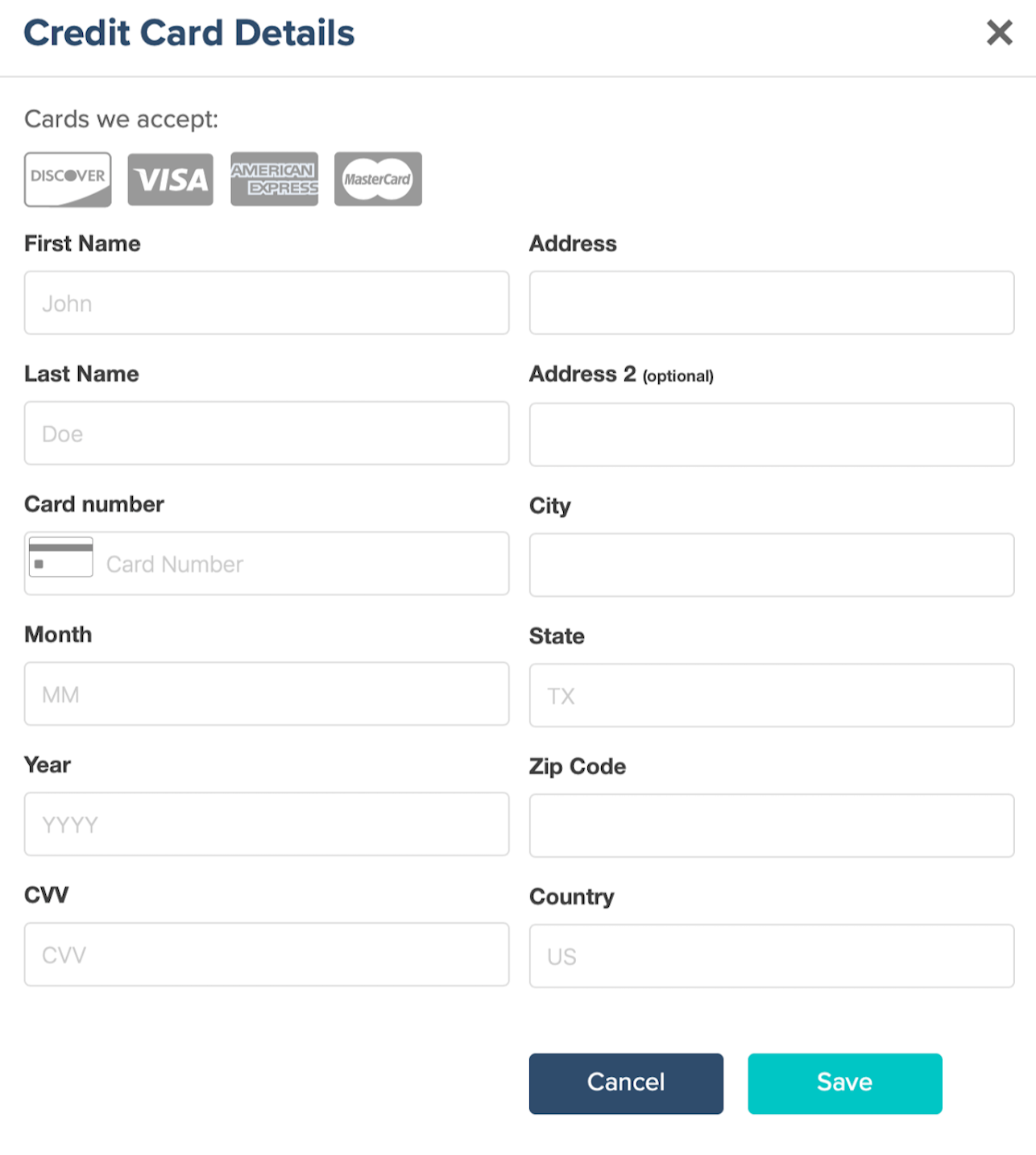
Save the card to store it on the account
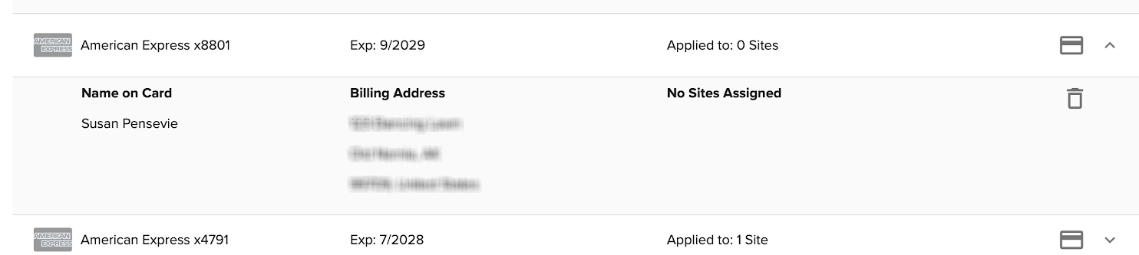
View Saved Payment Methods
The Payment Method section displays all credit cards currently saved to the account.
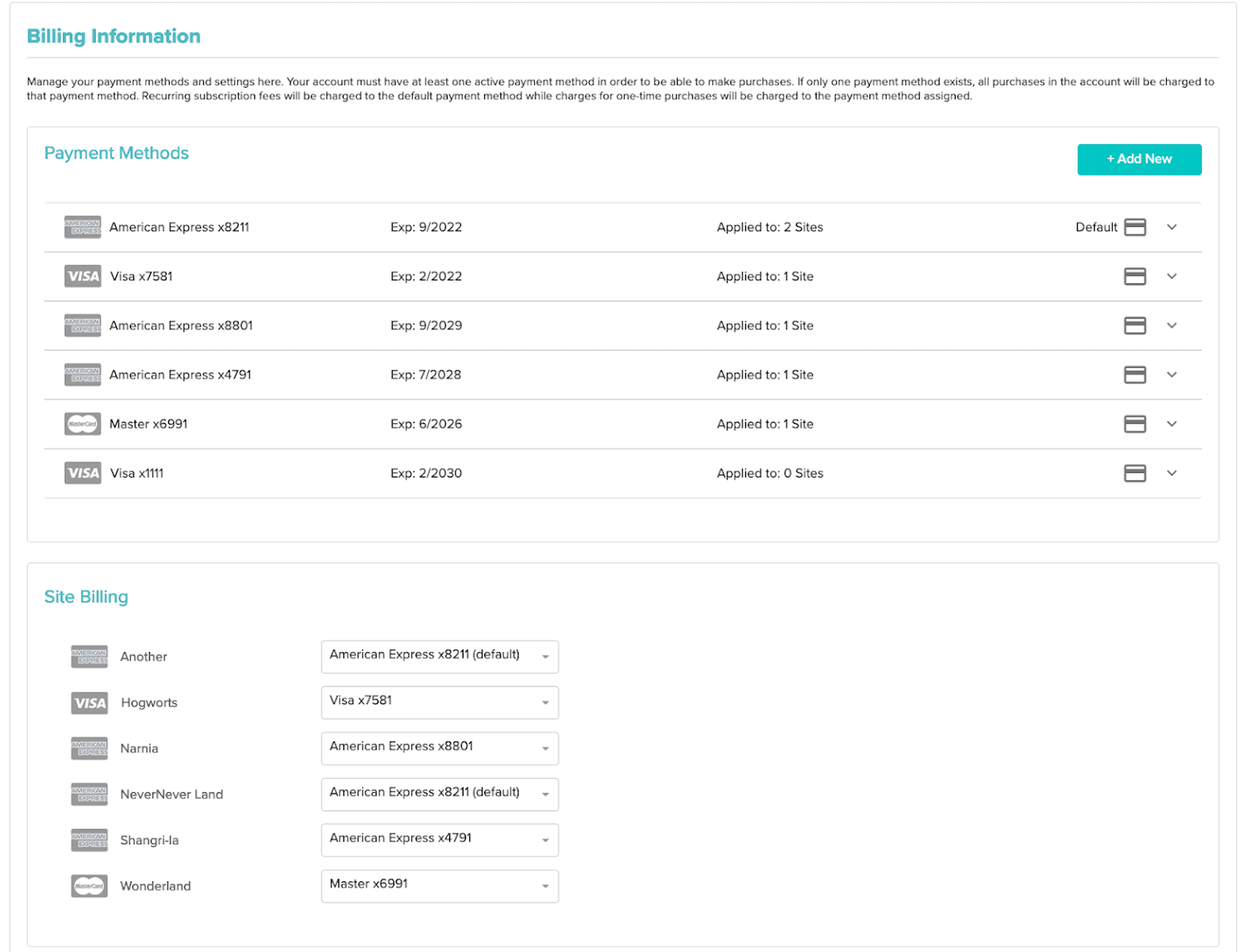
From this section, you can:
Review saved cards
Open the dropdown arrow next to a card to view additional card details
Assign a Card to a Site
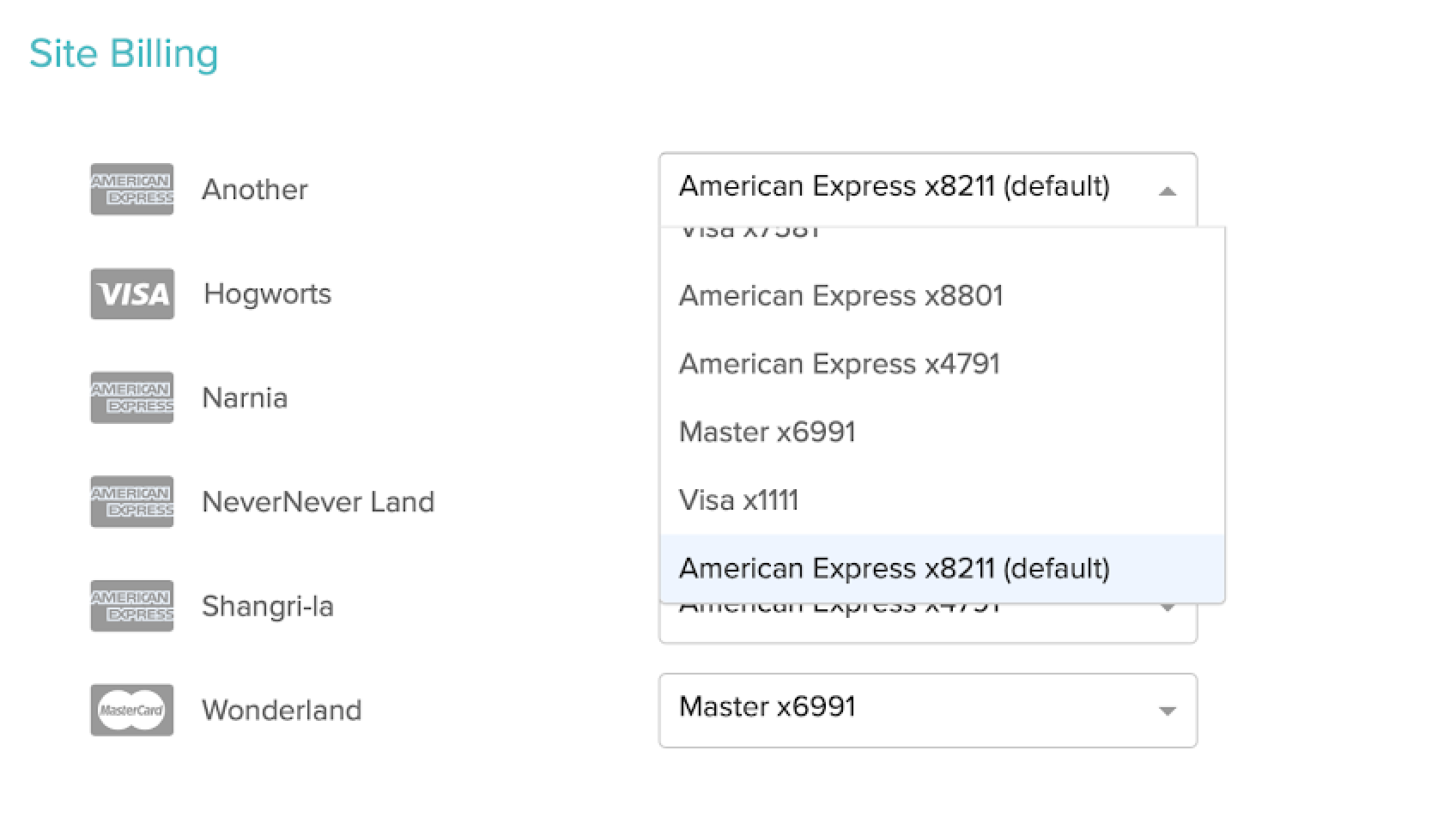
The Site Billing section allows you to choose which saved credit card is assigned to each site.
If you have a staffing account with multiple sites, you can:
View each site listed in the Site Billing box
Select a saved credit card for each site
Update billing assignments as needed
This makes it easier to separate charges by location instead of sending everything to the default card.
View Site-Level Billing Statements
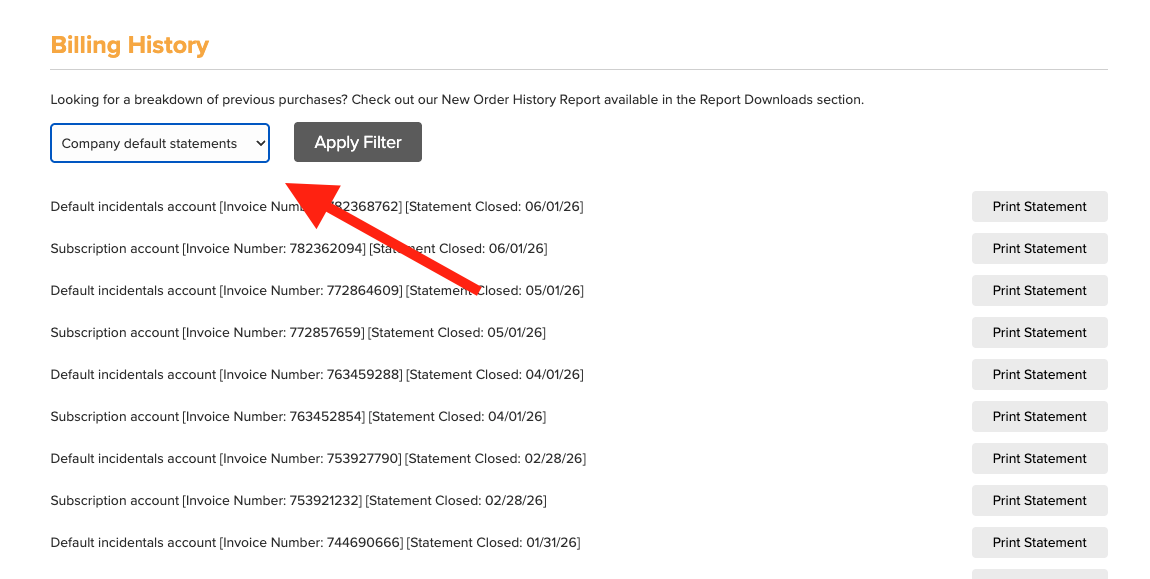
If a credit card is assigned to a site, you can also view statements for that site from the Billing Statements page.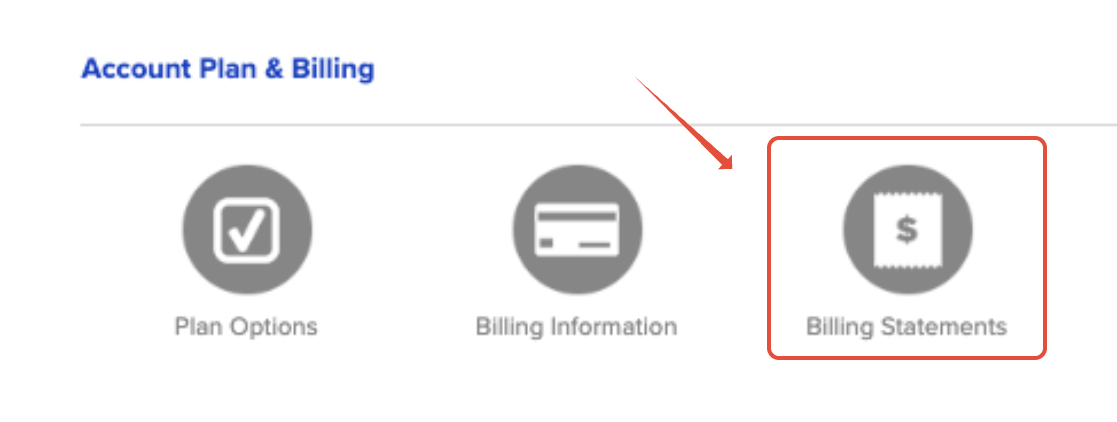
This is useful for:
Tracking charges by site using the Site Filter
Reviewing billing history by location
Keeping records organized for different branches or offices
Important Things to Know
Before making changes to saved cards, keep the following in mind:
If you delete a saved card that is assigned to one or more sites, those sites will automatically be updated to use the default card
Any site using the deleted card will also switch to the default card
The default card cannot be deleted
The default card can be replaced by adding a new credit card and setting it as the new default
Need to Remove All Cards?
If you need to remove all credit cards from your account, please contact our Support team for assistance.
If you have any questions or need help managing billing across your sites, our Support team is happy to help.
Related Articles:
Accessing Your Incidental Billing Statements
How to Add or Replace the Credit Card on Your Account for Incidental Purchases
